Using your 3CX iOS App
Introduction
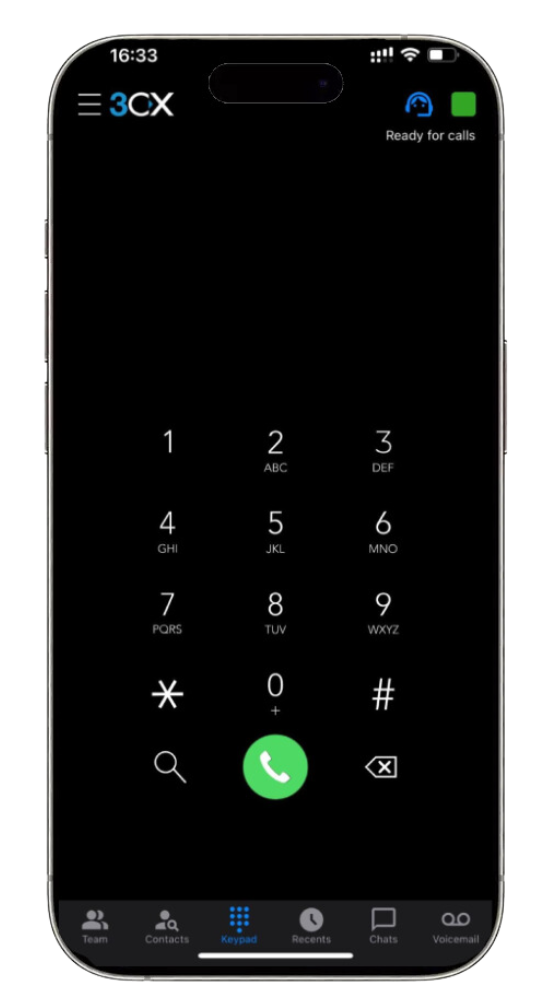
Step 1: Install the iOS App
Step 2: Configure your Extension: Scan the QR code

Making a Call
Using the iOS app to make a call is as straightforward as making a call from your smartphone’s native call function.

- “Transfer” allows you to perform two types of transfers.
- “Blind Transfer”- transfer the call directly without addressing the receiver.
- “Att. Transfer”- first speak to the receiver and then transfer the call.
- “Conference” - add more participants to the call.
- “Record” - record the conversation.
- “Video” - take your call up a notch by turning it into a video call.
- “New call” - places the current call on hold to make a new one.
Ask Siri to Make a Call
Use Siri to make a call using 3CX, be it by name e.g. “Siri call James using 3CX” or by number e.g. “Siri call 101 using 3CX”
Speed Dial Widget
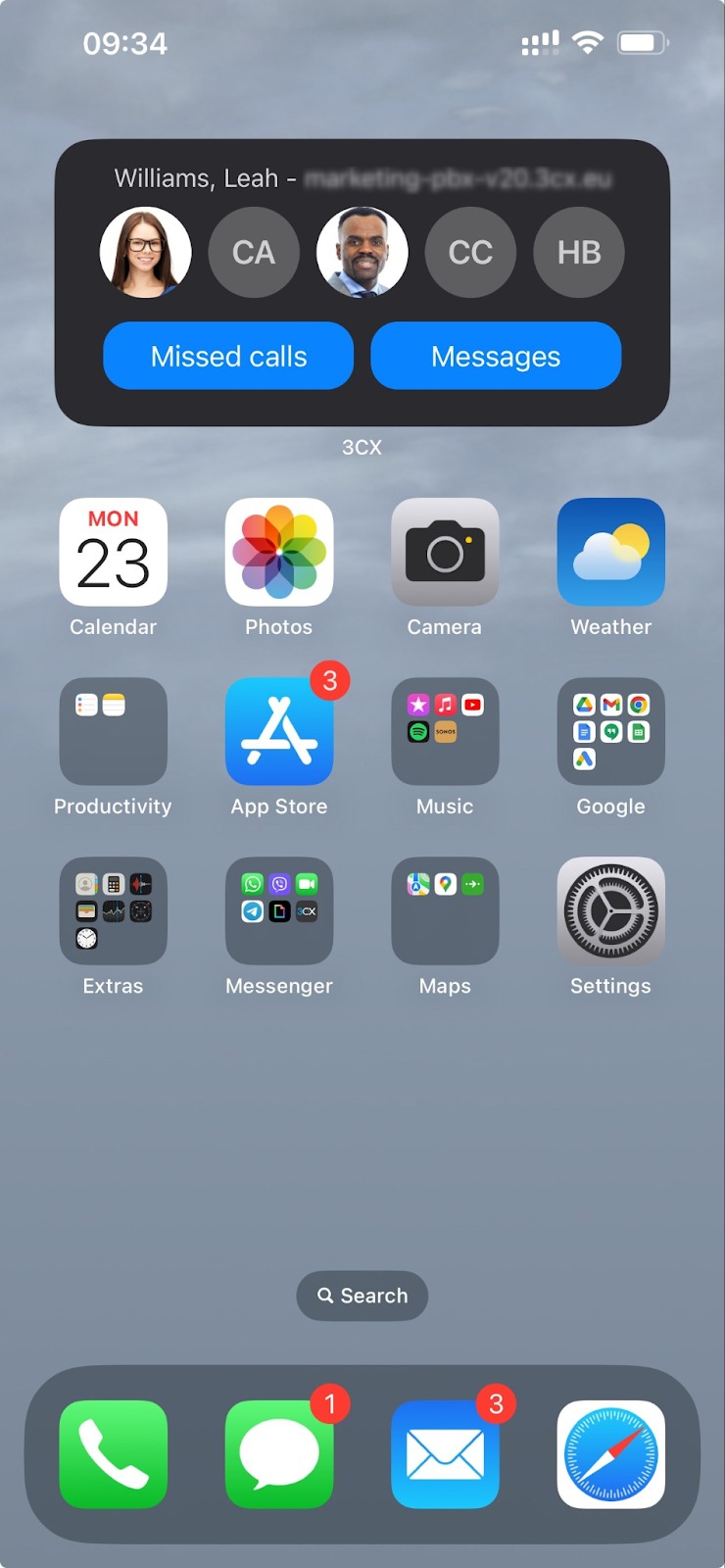
Quickly make calls using the 3CX Speed dial widget from your iOS screen.
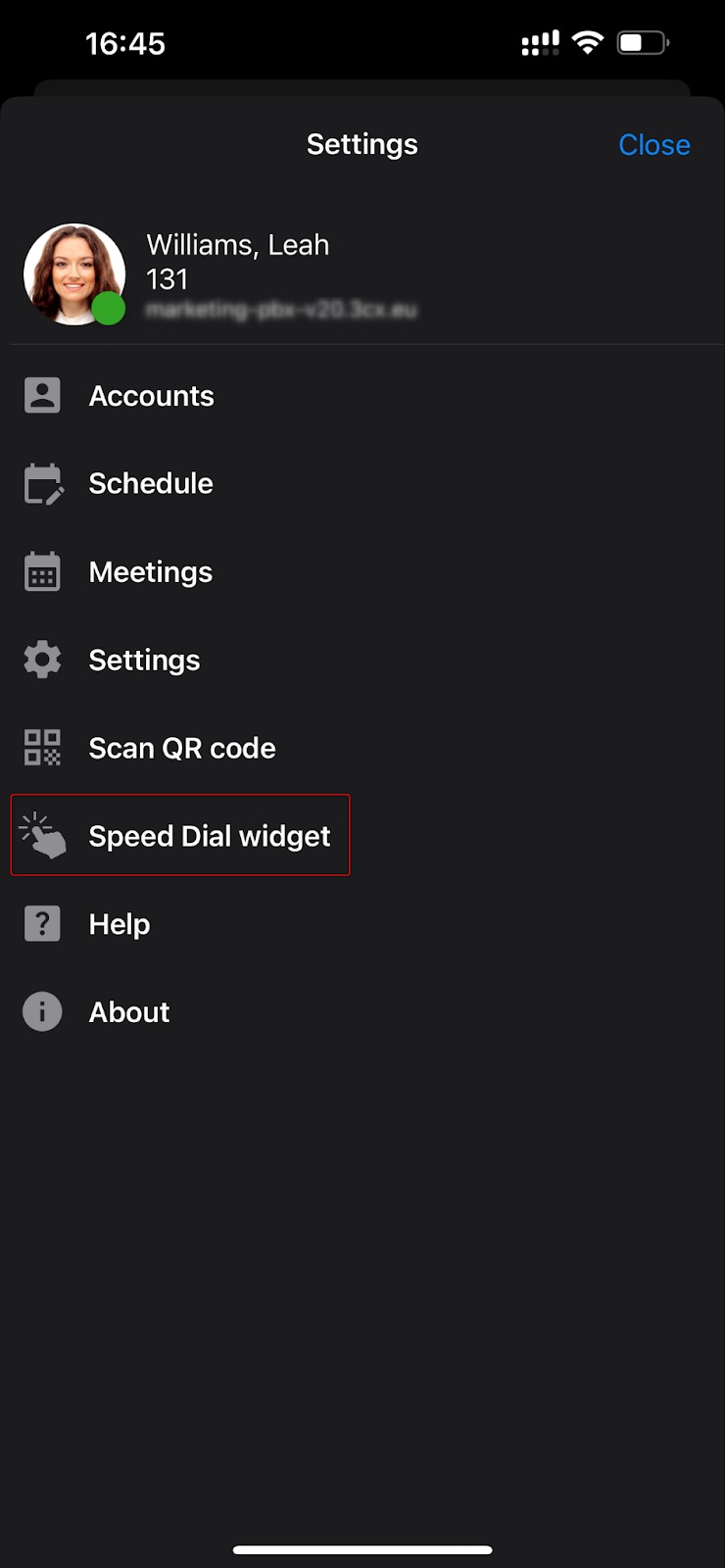

Select the “Speed Dial widget”.
Choose 1 of the 3 view options:
- Buddies: Add up to 20 contacts and quick access to “Missed calls” and “Messages”.
- Cards: Add up to 10 contacts in a 2-column list.
- List: A list of the 5 most used contacts.
Tap on “Add Widget”.
Schedule a Video / Audio Conference
With the iOS app, it's quick and easy to create an audio or video conference and invite participants. To schedule an audio conference call:
- Tap on the menu button in the top left corner and select “Schedule”. Allow 3CX access to your calendar.
- Add the subject and set the date and time of your conference. To create a video conference enable the “Video” option.
- The “Add to Calendar” option will create an event in your device’s calendar. If you don’t want to add the conference to your device’s calendar, disable this option.
- Tap “Save”.
- A new screen will appear called “New Event”.
- Tap on the “Invitees” option to add participants.
- Tap “Done” when all participants are added. Once the conference is created you cannot alter the participants.
- Tap on the “New Event” option in the top left corner.
- Adjust your conference settings from here such as alert, repeat, attachments and any notes.
- Click “Add” in the top right corner when you’re finished.
- Your conference is now scheduled and your Invitees will receive an email with details.
- View all your scheduled conferences from the menu under the “Meetings” tab.


To join a video conference from your iOS device the 3CX Video Conference App must be installed.
Create an Ad-hoc Conference
Add participants to an ongoing call to create an ad-hoc conference.
- During a call tap on the option on the dialpad.
- Search for who you want to add to the call by name or extension, or enter their phone number.
- Tap the contact or “Call (Number)” of the person you want to add. If only one number is assigned to the contact, this number will automatically be dialed and added to your call.

Control your Audio Conference
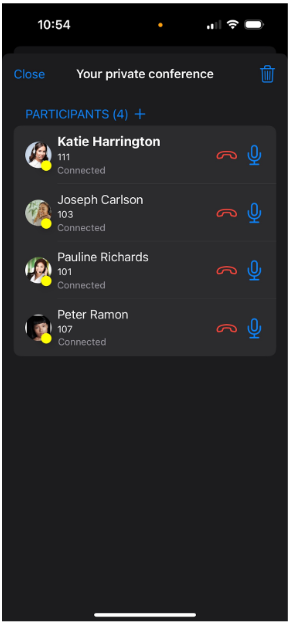
Have full control of your audio conference by muting, redialing, dropping any of the participants or adding additional participants.
- Start a 3-way audio conference.
- Tap on the Conference button.
- Mute, redial or kick out any of the participants.
- Tap on the + button to add additional participants.
Elevate a Call to a Video
- During an audio call you are able to easily switch to video by simply clicking on the video icon .
- The person on the other side will receive a notification that you are requesting video and can choose if they also want to share their video with you.
- It is not possible to elevate an audio conference to a video conference.

Share your Availability with Status
The status feature is a great way to inform your colleagues whether they can call you. This enables you to create a distraction free zone and it also helps your colleagues handle calls more efficiently.
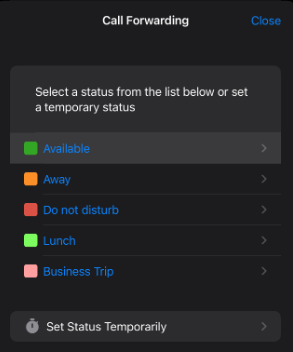
- You can find your status options by tapping on the green box in the top right corner.
- Choose from Available, Away, Do Not Disturb, Lunch, Business Trip and Set Status Temporarily.
- Customize your status and configure forwarding rules by pressing on the arrow next to the status.
iOS App Menu
From the menu you can:

- Switch between accounts or add a new extension.
- Schedule conferences and view upcoming meetings.
- Access your “Settings” from where you can:
- Edit your notification sounds
- Divert emergency numbers to GSM
- Manage device integrations
- Re-provision
- Request for account credentials to be resent
- Troubleshoot
- Scan your QR code from the web client.
- Access the speed dial widget.
- Get help
Related Articles
Using your 3CX Android App
Introduction The 3CX app for Android allows you to seamlessly take your business communications and contacts with you wherever you go. Access the company phonebook, manage calls, answer chats and respond to all kinds of messages - from the palm of ...3CX Windows Softphone App
Introduction The Windows App is a native softphone for Microsoft Windows. Deployed via the Windows store it offers greater security as all apps are security checked by Microsoft prior to publishing. The softphone enables you to set your status, ...How to open a shared mailbox - Microsoft Outlook Desktop App
Add a shared mailbox to new Outlook After your admin has added you as a member of a shared mailbox, close and then restart new Outlook. The shared mailbox should automatically display in your Folder pane. What if it didn't work? If your admin only ...Voicemail
Introduction The voicemail function in 3CX is ever so easy to use. Set your voicemail greeting, play your voice messages, read a transcription, and more from your app, Windows softphone or web client. Setting your Voicemail Greeting From the web ...3CX Video Conferencing
Introduction 3CX’s video conferencing solution allows for effective, face to face communication and collaboration with colleagues and customers. With 3CX, your invitees can seamlessly join meetings from their browser with absolutely no login, sign up ...