3CX Video Conferencing
Introduction
3CX’s video conferencing solution allows for effective, face to face communication and collaboration with colleagues and customers. With 3CX, your invitees can seamlessly join meetings from their browser with absolutely no login, sign up or installations. All they need is your meeting link. They can join in-browser on Chrome or Firefox, or use one of the free video apps for Android or iOS.
Create an Ad-hoc Video Conference
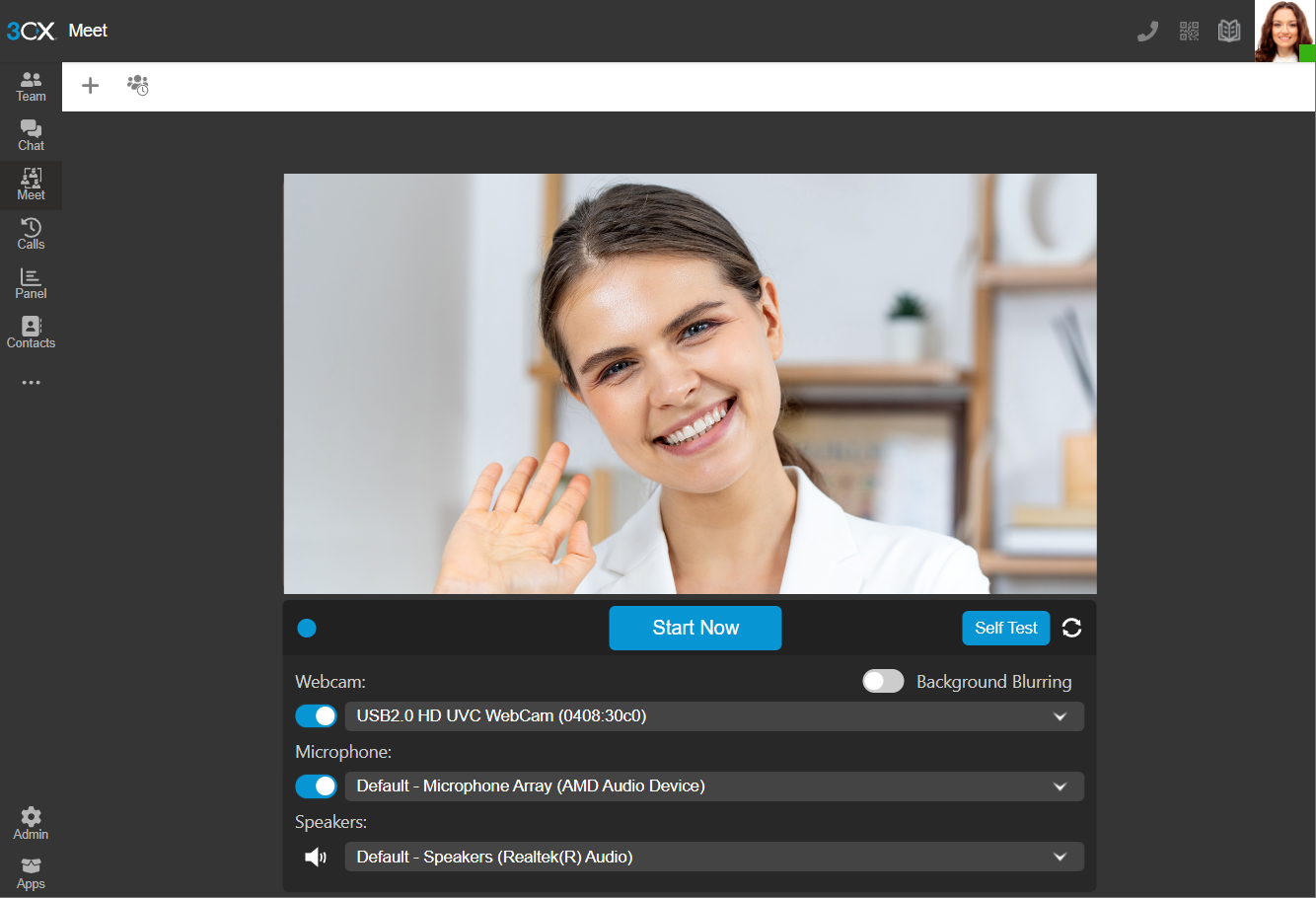
Go to “Meet” in the left-hand menu of your Web Client or Web App. By default, the Quick meeting will be ready for you to start a meeting. Test your internet connectivity before your meeting, see how.
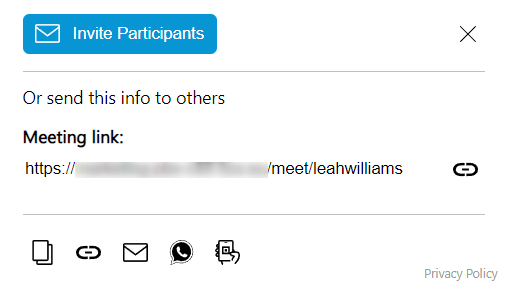
- As soon as you are ready hit “Start Now”.
- A pop-up window will appear to “Invite Participants” via email. You can also copy the meeting link, share it via WhatsApp, or scan the QR code to join from your mobile.
- To add more participants during the conference, simply click the “Add Participants” icon at the left bottom of the screen.
- Participants can join the conference by opening the Meeting link.

Settings
In the bottom right corner you’ll see a gear icon . Click on this and a new panel will appear with various setting options.

- Devices: edit your devices; camera, microphone and speakers which are used for your meetings.
- Meeting Quality: adjust the quality of your meeting
- The toggle bars allow you to blur your background, add HD, enable echo cancellation etc.
- Notifications: choose which actions you want 3CX Meet to notify you of.
Is your Internet Connection Good Enough?
Video conferencing requires a reliable and stable connection. To make sure that your audio and video settings are optimized, click on the “Self Test” button in your 3CX Meet window.
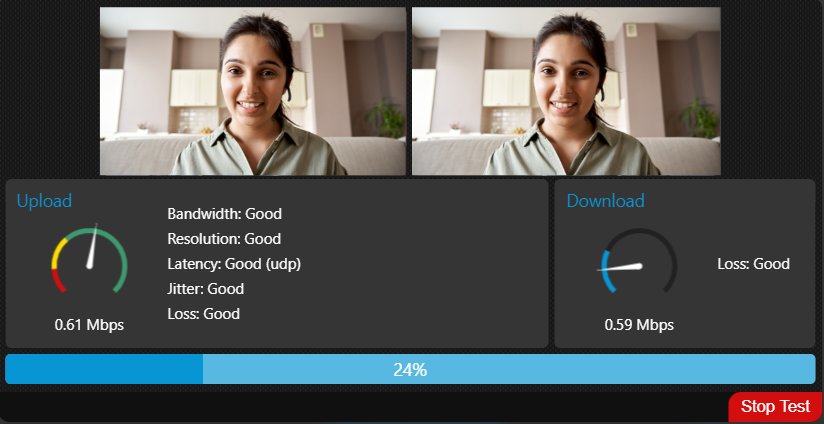
This automated test will run for about 2 minutes and will take you through 3 phases. Once the test is completed, you’ll receive one of three results: “Acceptable”, “Good” or “Poor”.
If you receive an "Acceptable" or "Good" result, your audio and video settings are optimized for a good user experience during meetings. If you receive a "Poor" result, you will need to adjust your settings or troubleshoot any issues with your equipment and/or internet.
How to Schedule an Audio or Video Conference
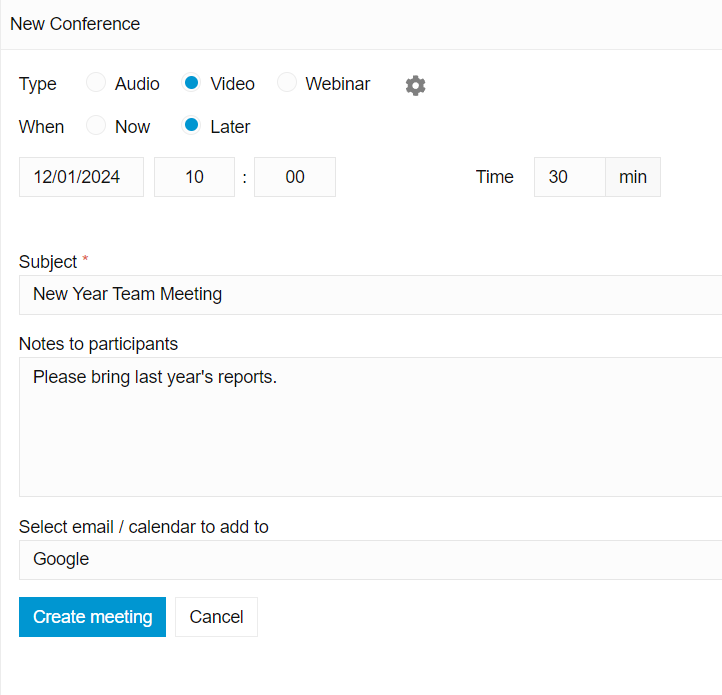
To schedule a new conference:
- Go to “Meet” and press the “+” sign.
- You can choose between audio conference, video conference or webinar.
- If you are scheduling a video conference or a webinar, press on the gear sign. A pop-up with additional meeting options will open.
- Fill in the conference details.
- From the drop-down “Select email / calendar to add to”, you can choose between Google, Microsoft 365, Outlook Online or Desktop Outlook (.ics).
- Click “Create Meeting”.
- Your calendar will automatically open in a new tab with a ‘New Event’ pre-populated with all the details. If you are using desktop Outlook, an .ics file will download. Open the file and a pre-filled calendar entry will open on your desktop.
- Invite your participants, make any additional changes and click “Save” or “Send”.
- To join a meeting you can click on the link in your calendar.
- To delete a scheduled conference, go to “Meet” and press the Scheduled Conferences button and then .


Note: selecting “Email (Legacy, NO RSVP)” will send a bare bones email invitation in which the RSVP function does not work. We highly recommend you choose one of the other options - Google, Microsoft 365, Outlook Online or Desktop.
Your Personalized 3CX Meet URL
The 3CX Meet link is a unique URL that you can share with customers, partners or colleagues, and they can contact you for free, just like your office phone number. Your shareable Meet URL can be found in your “Welcome to 3CX | Your Account Details” email or under “Settings” > “3CX Talk” in your Web Client.
A simple click on your 3CX Meet or Talk link and you’ll be connected. You will then receive a request to join the call or meeting.
Managing a Video Conference
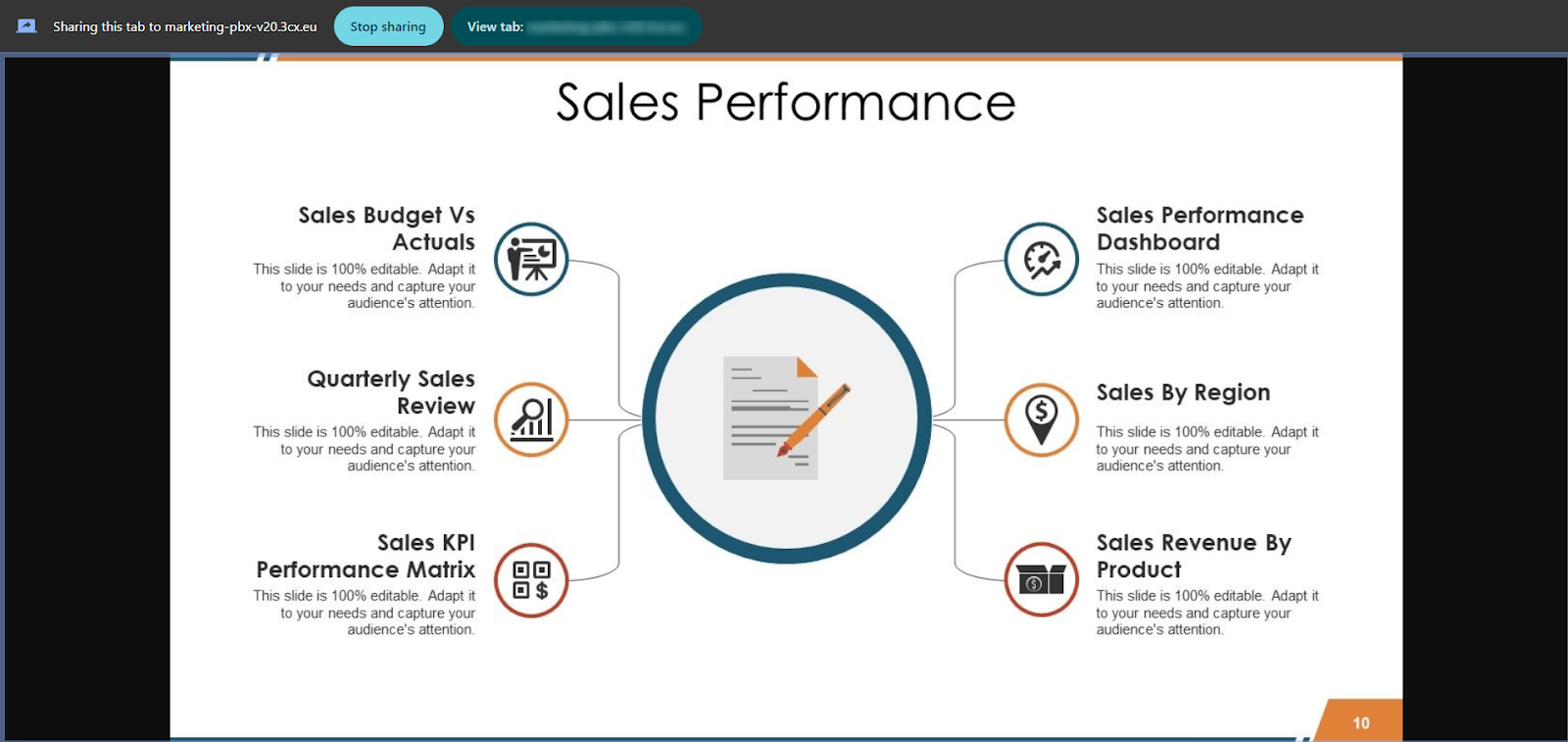
The 3CX Video Conference platform offers a range of features that can be used to enhance virtual meetings. These features vary from the very basic - such as “Add participants”, “Mute/Unmute Audio”, “Turn Camera On/Off”, “Chat”, and “Raise your hand” - to some more advanced features such as “Present your screen”, “Share Content” and “Start Recording”.
Users can also choose between the “Tile View” and “Full Screen” for their screen “Layout” as well as manage devices, meeting quality, and view statistics with the “Options” feature.
For more information on advanced features such as collaboration tools, remote control, meeting moderation and settings, visit our Advanced Video Conferencing guide.
Moderate and Control Users
An organizer can perform actions and provide additional rights to participants depending on their role, by clicking on a participant’s name and selecting:
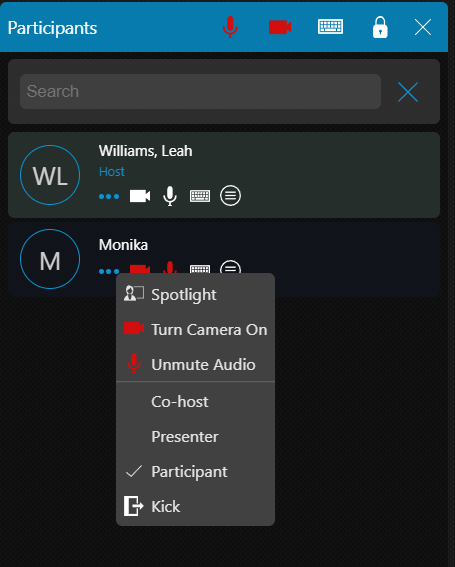
- Spotlight - Enlarges the participants' window so that they can present or speak.
- Turn Camera On/Off - Requests permission to enable the participant's camera.
- Mute Audio - Enables and disables the participants' microphones.
- Co-host - Has full control of the web meeting and can use all the available features, as well as use the Remote Control function, control cameras, microphone and chat access. Co-hosts can also accept, reject or kick a user out of a meeting.
- Presenter - Can share their screen, reply to remote control requests, polling and share files and PDF documents.
- Participant - Can reply to remote control requests and polls, chat and open shared files.
- Kick - Immediately remove a user from a meeting. ‘Kicked’ users can re-join a meeting.
Note: The meeting creator’s role is denoted by the title of “Host” and cannot be moderated by other organizers.
Related Articles
Using your 3CX Android App
Introduction The 3CX app for Android allows you to seamlessly take your business communications and contacts with you wherever you go. Access the company phonebook, manage calls, answer chats and respond to all kinds of messages - from the palm of ...3CX Web Client
Introduction The 3CX Web Client is a browser-based app. It combines all the features you need to easily and efficiently communicate, collaborate and connect with colleagues, partners, and customers. From this one interface, you can manage calls, view ...Using your 3CX iOS App
Introduction Whether you choose to work remotely from home, by the pool or at your neighborhood cafe; the 3CX iOS app lets you take your office extension along for the ride! Apart from call and contact management, you can also chat with colleagues ...