Voicemail
Introduction
The voicemail function in 3CX is ever so easy to use. Set your voicemail greeting, play your voice messages, read a transcription, and more from your app, Windows softphone or web client.
Setting your Voicemail Greeting
From the web client:
- Click on your avatar in the top right corner and click on “Settings” > “Greetings”.
- From here you can choose to customize your greeting according to your status:
- Upload a personal greeting.
- Record a personal greeting from your PC by clicking on the microphone icon.
- Record a personal greeting from your IP Phone by clicking on the deskphone icon.
- Delete a greeting.
- Select to play the default greeting.
Playback your Voicemail Messages
You will be notified of a new voicemail message by email and from any one of your apps - web client, Windows softphone or iOS or Android apps.
From the web client:
- Click on the 3 dots in the left hand menu and select “Voicemail”.
- Here you will see all your voice messages and you can choose to: download, play, call back, delete, or get a transcript.
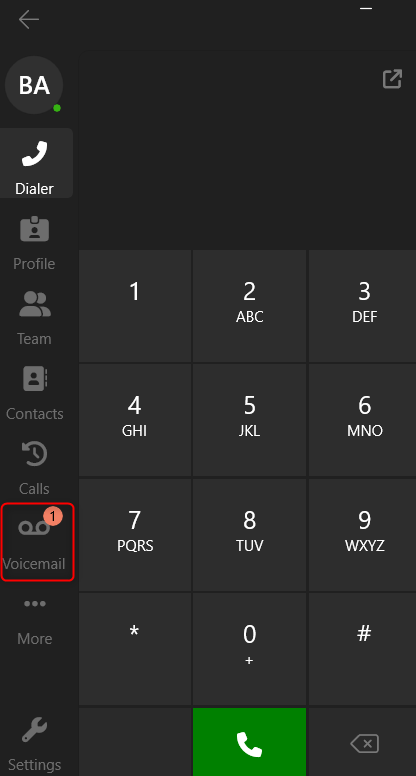
From the Windows Softphone:
- Click on the “Voicemail” option in the left-hand panel.
- Here you will see all your voice messages.
- Click on the voicemail to listen to it.
- Click on the icon next to the voicemail to read a transcription of the message.
From your iOS or Android app:
- Tap on the “Voicemail” icon in the bottom right corner.
- Here you will see all your voice messages.
- Tap on a voice message to hear it.
- Alternatively, you can tap on the 3 dots next to the message and choose to: get a transcription, call back or mark as heard.
Related Articles
3CX Windows Softphone App
Introduction The Windows App is a native softphone for Microsoft Windows. Deployed via the Windows store it offers greater security as all apps are security checked by Microsoft prior to publishing. The softphone enables you to set your status, ...3CX Web Client
Introduction The 3CX Web Client is a browser-based app. It combines all the features you need to easily and efficiently communicate, collaborate and connect with colleagues, partners, and customers. From this one interface, you can manage calls, view ...