3CX Windows Softphone App
Introduction
The Windows App is a native softphone for Microsoft Windows. Deployed via the Windows store it offers greater security as all apps are security checked by Microsoft prior to publishing. The softphone enables you to set your status, manage calls, access CRM & phonebook entries as well as view your BLF panel for easy calling.
Installation & Provisioning
To install the Windows softphone:
- Download the softphone from the Microsoft Store
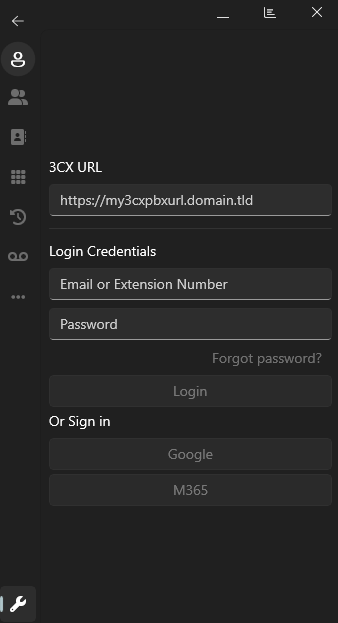
- Enter your 3CX URL - found in “Your 3CX Account Details” email.
- Enter your email or extension number along with your password and click on “Login”. The softphone will auto-provision.
Note: If 2FA is enabled for your extension, you will be requested to enter your security PIN.
- Sign in using your Google or Microsoft 365 account by:
- Entering your 3CX URL
- Click on the Google or Microsoft 365 buttons.
- A browser will open to authenticate and once you log in, the Windows Tile dialog box will appear.
- Click on the Provision button to provision your account.
From the Web Client
Install and provision the Windows softphone from your web client:
- Open your 3CX Web Client.
- Click on Apps and click on the Windows App tile.
- Tap on the Provision Button, followed by clicking on ‘Open 3CX’ in the browser pop up window.
- The app will launch with your extension automatically configured.
- Windows Defender will prompt you to allow 3CX access.
- Alternatively your administrator can provision it for you using PNP provisioning.
Making a Call
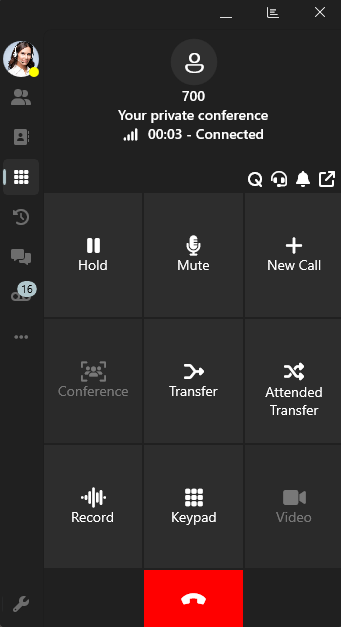
Initiate a call from the phonebook, by manually entering a number in the dialpad or by copying and pasting a number. During an active call you can:
- “Transfer”- choose from 2 different types of call transfer:
- “Blind Transfer” - transfer the call without informing the receiver.
- “Att. Transfer” - inform the receiver and then transfer the call.
- “Conference” - add more participants to the call.
- “Record” - record the conversation.
- “New call” - places the current call on hold to make a new one.
Create an Ad-hoc Conference
Add participants to an active call to create an ad-hoc conference. During an ongoing call:
- Click the “Conference” button on the dialpad.
- Add the new participant to the call by searching for them by name or extension, or by entering their phone number.
- Tap the searched contact or “Call (Number)” to add. If only one number is assigned to the contact, this number will automatically be dialed and added to your call.
Setting Your Status
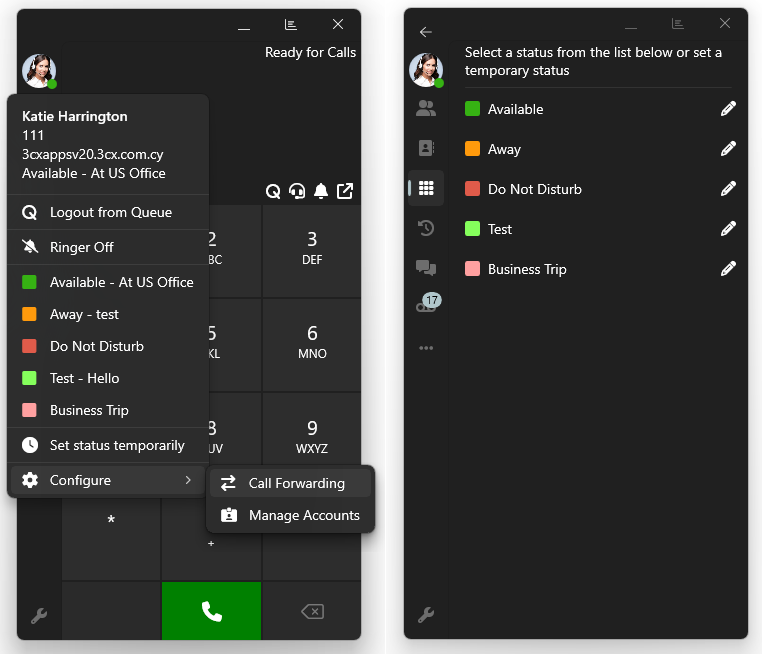
- Click on your initials or profile picture in the top left corner on your app.
- Select your status to let colleagues know whether you are available or not.
- Different statuses allow you to have different call handling settings. E.g. directing to a colleague or to voicemail.
- Click on “Configure” and “Call forwarding” to edit your statuses from your Web Client.
Deskphone Control
The 3CX Windows Softphone allows you to control your deskphone via the app to make and receive calls.
- A deskphone device needs to be assigned and registered to your extension, speak to your administrator otherwise.
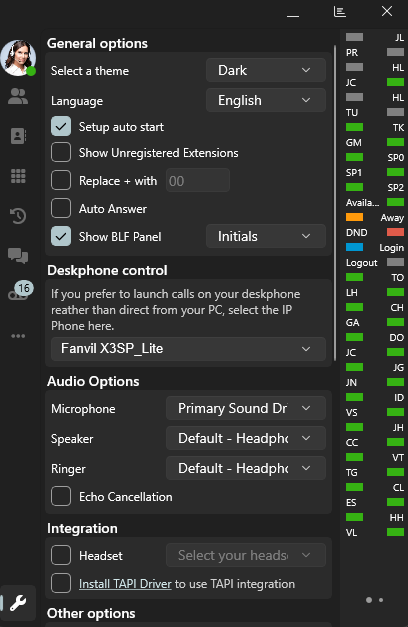
- From your softphone go to “Settings”.
- In the section “Deskphone control” select the device on which you would like to receive and launch calls on.
Related Articles
How to find your computer name on Windows 11
TABLE OF CONTENTS Using the Settings App Using Command Prompt To find your computer name on Windows 11, open Settings, go to System, and select About to find the "Device name" under Device specifications. Alternatively, right-click the Start button, ...How to find your computer name on Windows 11
To find your computer name on Windows 11, open Settings, go to System, and select About to find the "Device name" under Device specifications. Alternatively, right-click the Start button, select Settings, and navigate to System > About. For a quick ...How to add a Microsoft 365 email account to Microsoft Outlook Desktop for Windows
TABLE OF CONTENTS Step 1: Open Microsoft Outlook Step 2: Open Account Settings Step 3: Enter Your Email Address Step 4: Enter Your Password Step 5: Complete Multi-Factor Authentication (if enabled) Step 6: Finish Setup Step 7: Start Using Your Email ...How to Sync a Microsoft SharePoint Document Library to Windows File Explorer
Syncing a SharePoint document library lets you work with your files directly in File Explorer, just like you would with files on your computer. Any changes you make are automatically synced to the cloud. Step 1: Sign in to SharePoint Open your ...Using your 3CX Android App
Introduction The 3CX app for Android allows you to seamlessly take your business communications and contacts with you wherever you go. Access the company phonebook, manage calls, answer chats and respond to all kinds of messages - from the palm of ...