Allowing Garuda Tech to manage your Facebook Page
Overview
Adding Garuda Tech as a manager on your Facebook (and Instagram) Account is required in order to allow us to manage your SEO and Socials.
If you do not have an existing Facebook Page
Contact us and we will provide instructions on how to setup a new page.
Speak to us before doing this however as there are important things to consider, such as in which account it will be created.
If you have an existing Facebook Page
Follow these steps to grant Garuda Tech full manager access to your Facebook Business account via Business Manager:
Step 1: Open Facebook Business Manager
- On your computer, open a web browser and go to: https://business.facebook.com
- Log in using your Facebook credentials associated with your business.
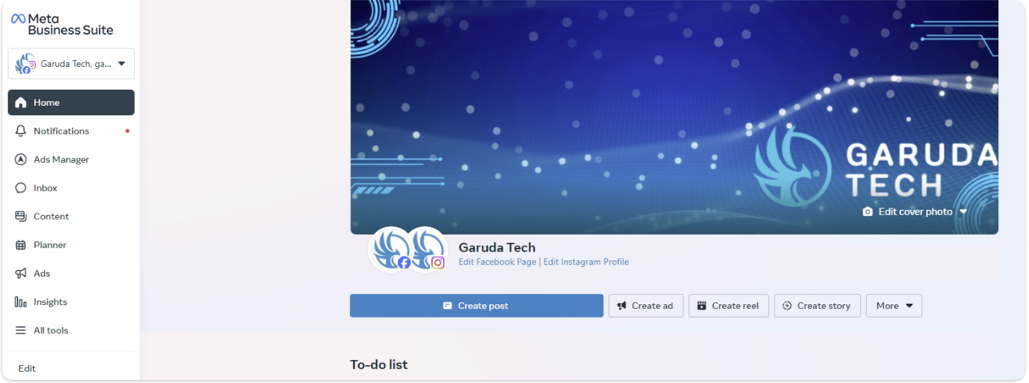
Step 2: Access Business Settings
- Once logged in, from the Business Manager homepage, click the gear icon (⚙️) or select Business Settings from the menu on the left side.
Step 3: Go to Users > Partners
- In the Business Settings sidebar, click Users to expand it.
- You can see the people who have access to your account under People in the sidebar.
- Click Partners to see the list of business partners who currently have access.
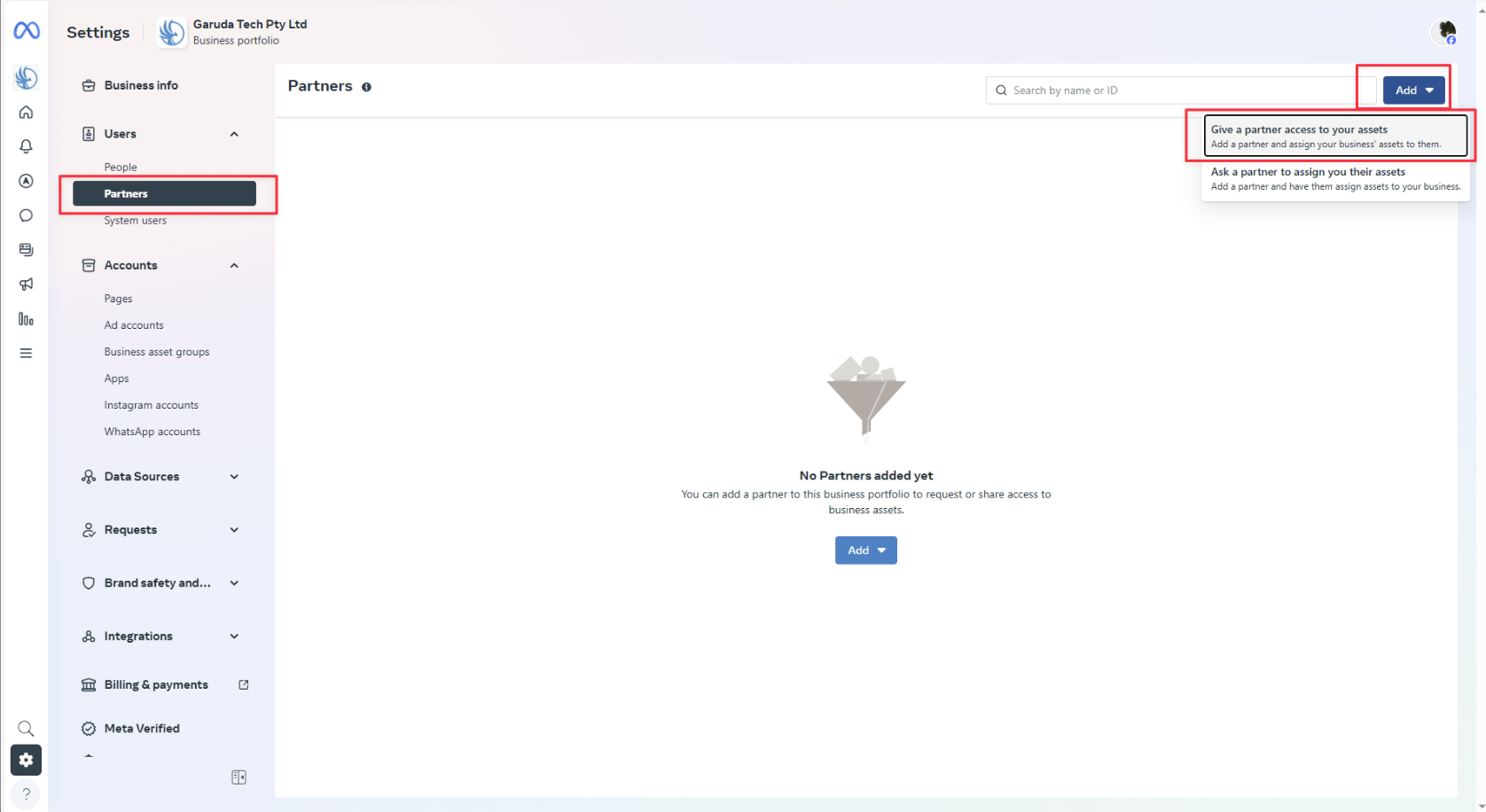
Step 4: Add a New User
- Click the blue Add button near the top right.
- Choose to Give a partner access to your assets
- In the dialog, enter the Business Portfolio ID for Garuda Tech (which we will provide separately).
- Select the role Admin Access (full management permissions).
Step 5: Assign Assets and Permissions
- Next, you will be prompted to assign assets.
- Select your Facebook Page(s), Ad Account(s), and Instagram Account(s) that Garuda Tech will manage.
- Grant Full Control permissions for each asset to allow complete management capabilities.
Step 6: Send Invitation
- Click Invite to send the access request.
- Garuda Tech will receive a notification and accept the invitation to gain access.
Notes:
- Only users with Admin or Owner access in your Business Manager can add new users.
- If you have any questions or need assistance, contact Garuda Tech directly.
Related Articles
How to sign into Microsoft 365 email on the web
TABLE OF CONTENTS Step 1: Open Your Web Browser Step 2: Go to the Microsoft 365 Sign-in Page Step 3: Enter Your Email Address Step 4: Enter Your Password Step 5: Complete Any Additional Security Steps Step 6: Access Your Inbox Tips: Follow these ...How to open a shared mailbox - Microsoft Outlook Web
Add the shared mailbox so it displays under your primary mailbox If you want to monitor the email from your primary mailbox and the shared mailbox at the same time, use this method. After you complete this task, the shared mailbox and its folders are ...3CX Web Client
Introduction The 3CX Web Client is a browser-based app. It combines all the features you need to easily and efficiently communicate, collaborate and connect with colleagues, partners, and customers. From this one interface, you can manage calls, view ...How to stop sharing a folder from OneDrive
1. Go to https://onedrive.live.com (or open OneDrive in Microsoft 365). 2. Find the file or folder you want to stop sharing. 3. Right-click it and choose Manage Access (or Details > Manage Access). 4. Under Links Giving Access, click the X (Stop ...Using your 3CX iOS App
Introduction Whether you choose to work remotely from home, by the pool or at your neighborhood cafe; the 3CX iOS app lets you take your office extension along for the ride! Apart from call and contact management, you can also chat with colleagues ...