View and Sync SharePoint files in File Explorer
You can set up Sync the files in your Microsoft 365 or SharePoint site libraries so they’re always available on your computer, even when you’re offline. To sync your SharePoint files and folders, follow these steps:
- Sign into the SharePoint site you want to sync files and folders from.
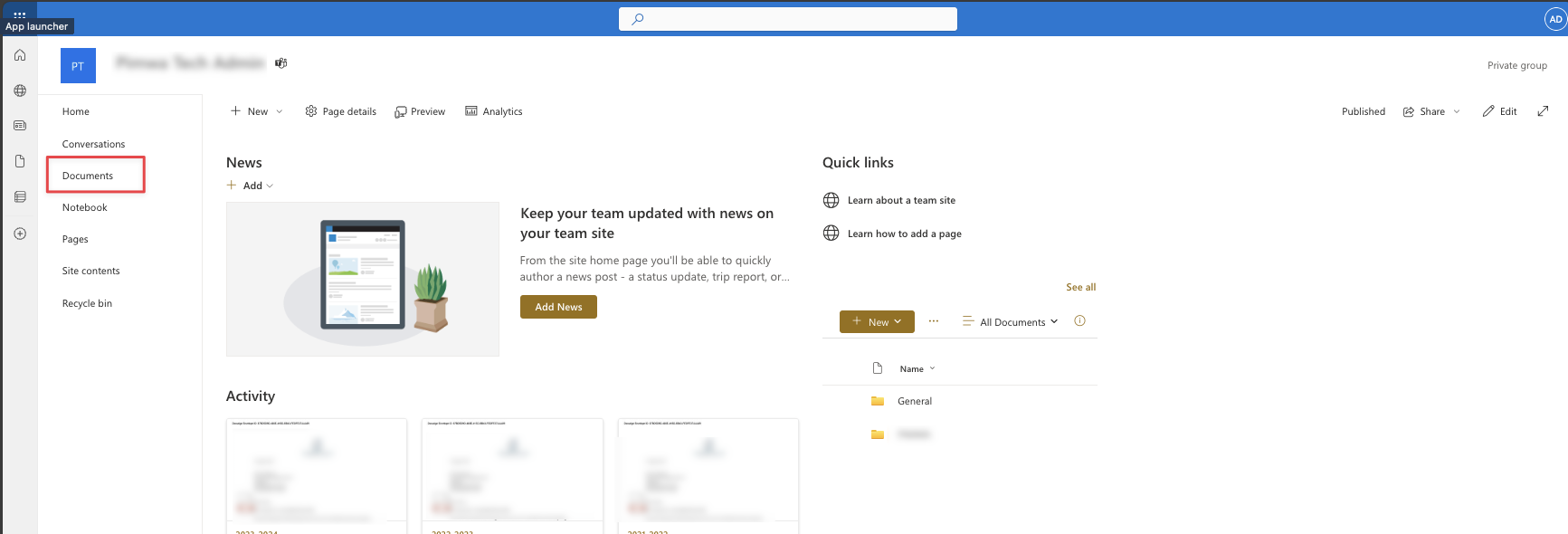
- On the left menu select "Documents" which will take you to the files.
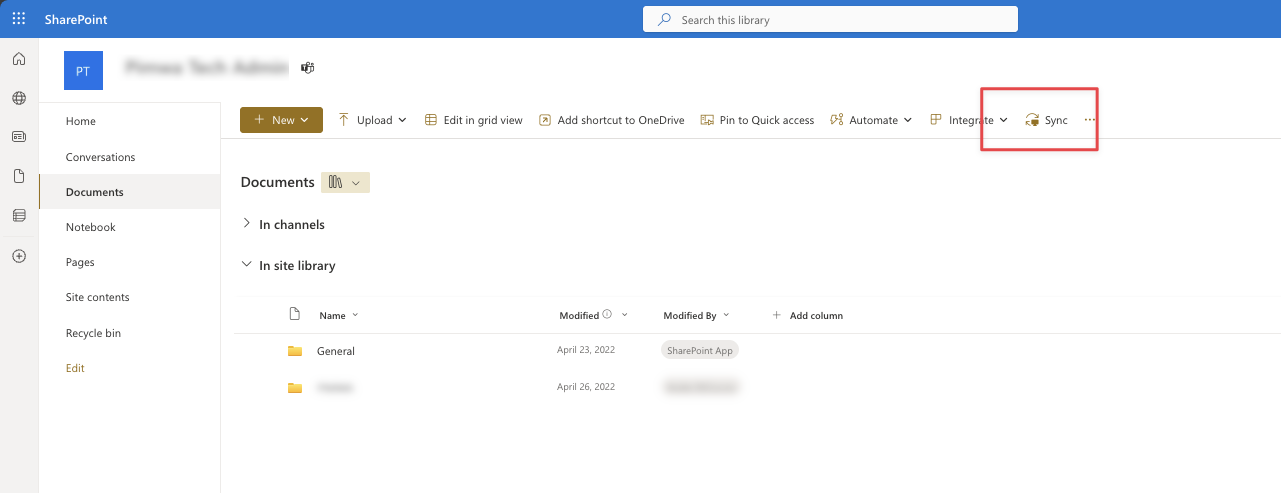
- At the top there will be a button to "Sync" - press this.
- You may need to provide your sign in credentials.
- The files will now sync to your Windows Explorer (or Mac Finder)
When you log into sharepoint it will show you a "home" page looking something like this.
Select "Documents" from the left menu.
You can access files here or you can press "Sync" to synchronise to your desktop.
Related Articles
How to Sync a Microsoft SharePoint Document Library to Windows File Explorer
Syncing a SharePoint document library lets you work with your files directly in File Explorer, just like you would with files on your computer. Any changes you make are automatically synced to the cloud. Step 1: Sign in to SharePoint Open your ...How to access a Microsoft Sharepoint document site on the web
Microsoft SharePoint is where your organisation stores and shares documents online. You can access it from any web browser, without needing to install extra software. Step 1: Sign in to Microsoft 365 Open your web browser (Chrome, Edge, or Safari). ...Reduce the size of your mailbox and Outlook Data Files (.pst and .ost)
TABLE OF CONTENTS Reduce your mailbox size The Mailbox Cleanup tool Use Conversation Clean Up to remove redundant messages Search for large messages Reduce the size of an Outlook Data File (.pst) or Offline Outlook Data File (.ost) The more email you ...3CX Video Conferencing
Introduction 3CX’s video conferencing solution allows for effective, face to face communication and collaboration with colleagues and customers. With 3CX, your invitees can seamlessly join meetings from their browser with absolutely no login, sign up ...How to open a shared mailbox - Microsoft Outlook Desktop Classic
After your admin has added you as a member of a shared mailbox, close and then restart Outlook. The shared mailbox should automatically appear in your Folder pane in classic Outlook. What if it didn't work? If your admin only recently added you to a ...